
DeepSeek Harness Setup
This guide covers the official DeepSeek Harness. Connect to CertaEdge through the Web UI's Custom model API option. Do not enter your CertaEdge key in the built-in field for official DeepSeek credentials.
1. Start the Web UI
Install Node.js 24.9.0 or later. Open the project directory you want to use in a terminal, then run:
node --version
npx @deepseek-ai/dsh web
On the first run, confirm the download when prompted in the terminal. Keep the terminal running and open the address it prints; the default is http://127.0.0.1:3080. If the port is occupied or you are running on a remote server, follow the terminal output.
2. Add the custom CertaEdge endpoint
Open Settings → Models → Add model provider, switch to Custom model API, and enter:
| Field | Value |
|---|---|
| Provider ID | certaedge; avoid changing this ID after creating it |
| Display name | CertaEdge |
| Base URL | https://certaedge.com/v1 |
| API protocol | OpenAI Chat Completions |
| API Key / Credential | Your complete key copied from the console |
| Model catalog | Add at least one real model ID that supports Chat Completions and tool calling |
Click Fetch available models, select models in the list, then click Add selected. If fetching fails, manually add a complete ID from the model catalog. Save the provider when finished; fetching the list alone does not save the configuration.
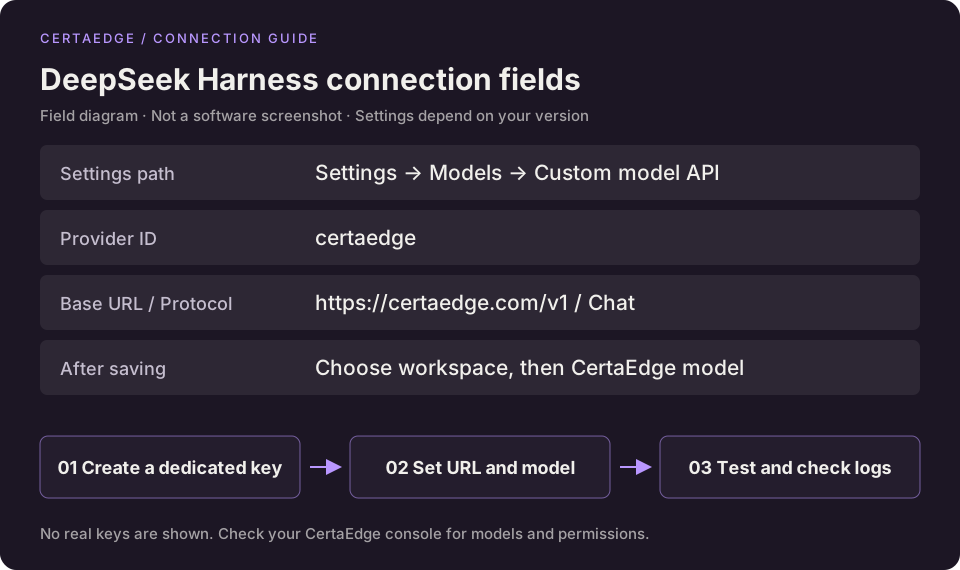
This is a field diagram. Setting names depend on the current official version.
3. Select a workspace and model
Click Choose workspace, then add and select the project directory you intend to use. The session input cannot start working properly until you select a workspace.
Create a session and select the newly added model under CertaEdge. First ask “Summarize this project's directory structure. Do not modify any files.” Confirm both the response and request log are correct before starting regular work.
Troubleshooting
- Startup failure: confirm the Node.js version meets the requirement, then follow the terminal messages to check installation or port issues.
- Key hidden after saving: this protects the credential and does not mean it was lost. Send a short request to verify.
- Models can be fetched but tasks fail: check that the model supports tool calling and is selected in the session.
- Need Responses or Messages: add a provider configuration for that protocol and adjust its address as needed. Changing the protocol label alone is not enough.
For more details, see the official quickstart and custom model configuration.