
Cherry Studio Setup
This guide targets Cherry Studio 2.1.10, the stable release published on 2026-10-31. Complete one regular conversation through OpenAI / Chat Completions before adding other protocols.
1. Install and prepare
Install the build for your operating system from the official stable releases. If already installed, check the version in Settings → About and update before following these steps.
Have both of the following ready:
- Your complete CertaEdge API Key, sufficient account balance, and available key quota.
- An exact model ID with an available channel and Chat Completions support. A catalog entry without an available channel cannot be used; a display name does not replace the API model ID.
2. Add a provider
- Open Settings → Model Provider, click Add Provider, and open Add Custom Provider.
- Fill in the following fields. Leave Start from a preset (optional) empty; this guide uses custom endpoints.
| Field | Value |
|---|---|
| Provider name | CertaEdge |
| API Key | Your complete key from the console; enter only the key, without Bearer or masked characters |
| Endpoint settings → OpenAI | https://certaedge.com |
| Default endpoint | Keep OpenAI marked as Default |
| Anthropic and other endpoints under More options | Leave empty for the first test |
- Check the Request path below OpenAI. It must show
https://certaedge.com/v1/chat/completions. Click Add. If the next step asks for an API Key, enter the same complete key there.
Address rules:
- Copy
https://certaedge.comas recommended. The client appends/v1/chat/completionsfor the OpenAI endpoint. - Version 2.1.10 also recognizes an address already ending in
/v1; that is the same API. This guide consistently uses the root URL to keep protocol-specific version paths clear. - Do not enter
/chat/completions,/models, or a website path such as/pricingin the endpoint field, and do not append#. Those special forms change request routing.
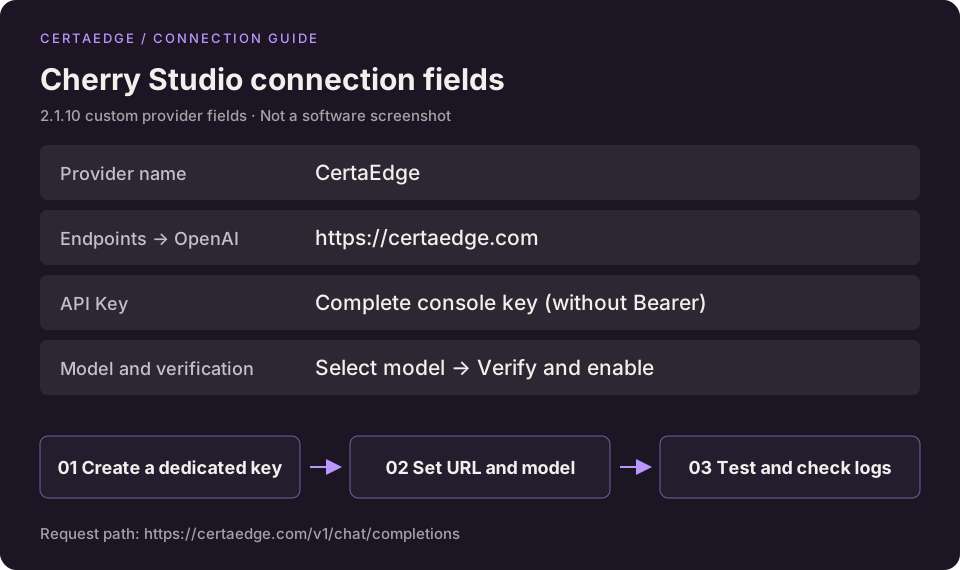
This diagram shows the 2.1.10 custom provider fields, not a software screenshot. “OpenAI” is an endpoint field; the Python SDK's base_url remains https://certaedge.com/v1.
3. Add and enable a model
Creating the provider may open the Choose models setup flow. You can also click Get models in the provider details.
- Select the model you confirmed is available. In the setup flow, select it and click Next; in the model management list, click
+beside it. Fetching the list alone does not finish adding a model. - If fetching fails or returns an empty list, click Add model manually. Paste the exact platform ID into Model ID; Model Name is for display. If Model purpose / Chat protocol / Endpoint type is required, choose Chat → OpenAI, corresponding to Chat Completions.
- In setup, click Verify and enable, wait for model verification and provider enablement, then click Done. From provider details, click Check, select this model, and confirm that the enable switch is on after verification succeeds.
Verification sends a model request and may incur charges. Resolve any error using the table below. A fetched model list is not proof that chat works, and Skip does not replace verification.
4. Start a conversation
Return to chat, start a regular conversation, explicitly select CertaEdge → the model you added, and send “Introduce yourself in one sentence.”
Confirm all three before configuring your own workflow:
- The model returns a text reply.
- The request appears in Usage Logs with the exact model ID you selected.
- Its status, usage, and cost are as expected. If chat replies but no platform request is logged, check whether a different provider is selected.
For other protocols: add only the endpoints you need in provider settings. OpenAI Responses, Anthropic, and Gemini can each use the root URL https://certaedge.com. Their request paths are /v1/responses, /v1/messages, and /v1beta/models/MODEL_ID:generateContent, respectively. Set the model's chat protocol to the matching endpoint and confirm that the platform model supports it. A model supporting only Responses or Messages cannot be checked through OpenAI / Chat Completions.
Troubleshooting
| Symptom | What to check |
|---|---|
Request preview is not /v1/chat/completions | Confirm you are editing the custom provider's OpenAI endpoint. Restore the root URL above and remove any leftover full path or # |
| Models were fetched but are missing from chat | Select a model and finish verification and enablement, or add it with +; confirm that the provider is enabled |
| Model list is empty or cannot be fetched | Check the key and URL, then manually add a real ID from the platform catalog with an available channel |
| 401 | Use a complete, active, unexpired key; omit Bearer from the API Key field |
| Balance, quota, or group permission error | Check account balance, the key's separate quota, its group, and model restrictions; topping up does not raise the key's quota |
| 404 or unsupported endpoint | Check the final request path, exact model ID, and chat protocol together; Responses, Messages, and Chat Completions are not interchangeable |
| 429 or too many requests | Read the full error, check rate limits and upstream capacity, and retry after waiting; do not assume the cause is balance alone |
| Connection failure, TLS error, or HTML response | Check the domain, HTTPS, proxy, and endpoint address; a working website does not prove the model API is reachable |
| Another provider is still used | Select CertaEdge again in the current conversation and confirm the actual request in platform logs |
Field names and steps follow the official custom provider guide and provider settings documentation. Later versions may rename controls; check the supported version at the top of this page.