
Cline / Roo Setup
Have your CertaEdge API Key and a model ID that supports tool calling ready. Cline and Roo are separate extensions; configure the one you use.
1. Install and open settings
Install Cline or Roo Code from the VS Code Marketplace. Installation links are also available in the official Cline guide and official Roo documentation.
Open the extension sidebar and click the extension's own settings button to find its API / model settings. These fields are not in VS Code's general settings.
2. Configure OpenAI Compatible
In Cline or Roo, select OpenAI Compatible as the API Provider and enter:
| Field | Value |
|---|---|
| Base URL | https://certaedge.com/v1 |
| API Key | Your complete key copied from the platform |
| Model ID / Model | A real model ID with tool-calling support |
If Context Window or Max Output Tokens is required, use the model's specifications. If unsure, keep the client's defaults for a short test. Leave vision, computer use, and other capabilities disabled until you have confirmed support.
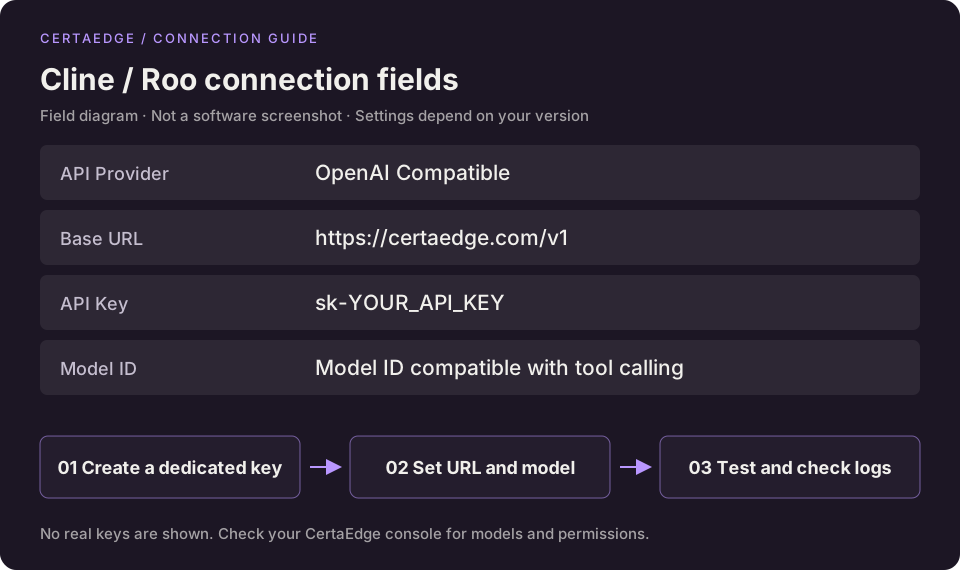
This diagram shows the shared configuration fields. Their location depends on your installed version.
3. Save and check the current mode
Save the settings. Some versions configure separate models for Plan and Act modes. For your first test, select the new CertaEdge provider and model in both modes so switching modes does not restore an old configuration.
If a connection-check button is available, run it once. Otherwise, continue with the short task below.
4. Verify chat and tool calling
Open a test project folder in VS Code and ask “Only list this project's main directories. Do not modify any files.” Approve read access when prompted by the extension.
Start regular tasks after the assistant responds, reads the directories, and the request appears in Usage Logs.
If chat works but tool calling fails, check whether the model's tool-calling format is compatible with the client. Successfully fetching a model list does not prove the agent can perform tasks.
For 401, 404, and similar errors, follow the troubleshooting guide. Compare your fields with Cline OpenAI Compatible or Roo OpenAI Compatible.