
n8n Setup
Sign in to a working n8n instance. Have your CertaEdge API Key and a model ID that supports Chat Completions ready.
1. Create a minimal workflow
- Create a workflow and add a Manual Trigger.
- Add an HTTP Request node and connect it to the trigger.
- Set Method to POST and URL to
https://certaedge.com/v1/chat/completions. - Select Generic Credential Type for Authentication, then Header Auth as the credential type.
- Create a Header Auth credential: set Name to
Authorizationand Value toBearer sk-YOUR_API_KEY. Replace the placeholder with your complete key and keep one space afterBearer. Save and select the credential.
The HTTP Request node lets you choose the endpoint explicitly, avoiding protocol differences between versions of the OpenAI node.
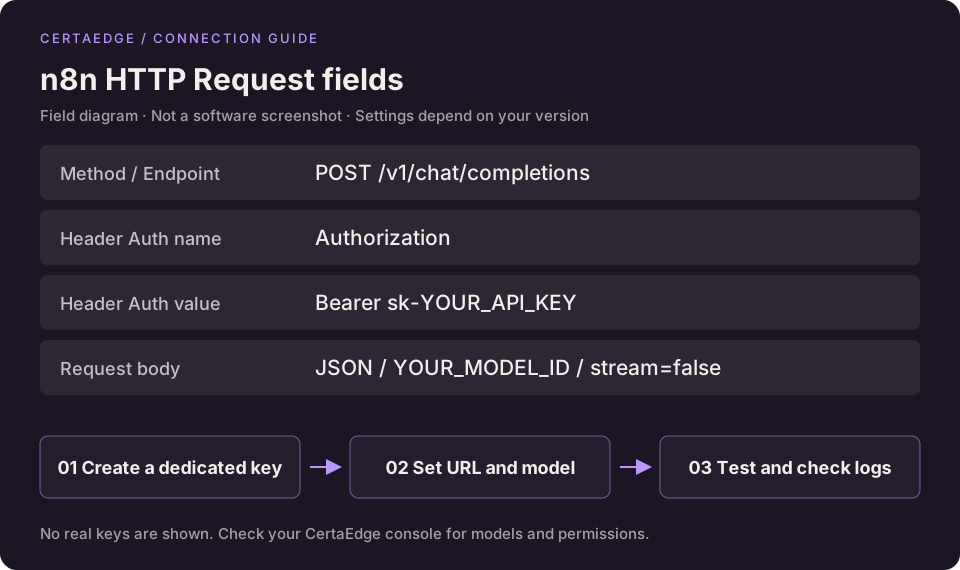
This is a configuration diagram. Node interfaces depend on the installed version.
2. Enter a message and execute
Enable Send Body, select JSON for Body Content Type and Using JSON for Specify Body, then enter:
{
  "model": "YOUR_MODEL_ID",
  "messages": [
    {"role": "user", "content": "Introduce yourself in one sentence."}
  ],
  "stream": false
}
Replace YOUR_MODEL_ID with a real model ID. If Content-Type is not generated automatically, add Content-Type: application/json to the headers.
Click Execute step. If the node needs data from the trigger, execute the entire workflow first. On success, Output contains choices[0].message.content and the request appears in Usage Logs. This call is billed at the model's price.
3. Use an OpenAI node if needed
Enter your CertaEdge API Key in the OpenAI credential and set Base URL to https://certaedge.com/v1. Leave Organization ID empty; additional custom headers are usually unnecessary.
Saving the credential attempts to read /v1/models. Passing this test only verifies the credential and model-list endpoint. You still need to execute a model node.
OpenAI node operations and protocols vary by version. Use a Chat-compatible model for Chat Completions and a Responses-compatible model for Responses. If the target ID is missing from the dropdown, try entering it manually. If you cannot select the matching protocol, use the HTTP Request workflow above.
Troubleshooting
| Symptom | What to check |
|---|---|
| 401 | Header Auth must contain Bearer, one space, and the complete key |
| 404 or an HTML response | Check the complete HTTP Request endpoint and model ID |
| 400 | Check that the body is valid JSON and model has been replaced |
| 429 | Use the error body to check concurrency, balance, and key quota |
Requests originate from the server or container running n8n. Confirm that environment can reach CertaEdge, and keep keys out of public workflow JSON. For enabled asynchronous generation APIs, see task lifecycle. The Chat Completions workflow on this page is not directly applicable to video or music tasks.
Generation task workflow
The following video API example handles one input and one generation task first. Batch applications must retain a separate ID and query count for every task rather than sharing the single-task context below.
Save the task ID after submission
- Copy the earlier HTTP Request node and name it “Submit video.”
- Keep Header Auth and change the URL to
https://certaedge.com/v1/videos. - Use the video page's
video.jsonas the body, replacing the model, size, and duration with values supported by your model. - Add an Edit Fields / Set node named “Save task ID.” Add a
task_idfield and use an expression to select theidreturned by the preceding node.
Keep submission outside the loop and execute it only once. Music, image generation, and Responses use different ID fields; adjust them using the API comparison.
Wait and query with a limit
After “Save task ID,” add a JavaScript Code node in Run Once for All Items mode. This code creates 60 query opportunities for that single task, rather than creating 60 generation tasks:
const taskId = $input.first().json.task_id;
if (typeof taskId !== 'string' || !taskId.startsWith('task_')) {
  throw new Error('Video submission did not return a valid task ID');
}
return Array.from({ length: 60 }, (_, index) => ({
  json: { task_id: taskId, attempt: index + 1 }
}));- Add Loop Over Items and set Batch Size to
1. - Connect its loop output to a Wait node set to
15seconds. - Connect Wait to an HTTP Request node using GET. Switch URL to expression mode and enter the expression below. Keep the same Header Auth credential and do not send a JSON body.
- Use Switch or If to branch on the query response's
status:completed: continue to download.failed: recorderrorand the task ID, then stop.queued,in_progress: connect back to Loop Over Items for the next query opportunity.- Other statuses or HTTP errors: take an exception branch rather than continuing as if successful.
- Loop Over Items' done output means all 60 opportunities have been used. Connect it to a timeout notification or logging node and retain the task ID so you can query the same task later.
URL expression for the query node:
{{ 'https://certaedge.com/v1/videos/' + $json.task_id }}Submit video → Save ID → Prepare attempts → Loop(loop) → Wait → Query → Status branch
↑ │
└──── Still processing ─────┘
Completed → Download and save Failed → Record error Loop(done) → Wait timed outDo not connect “Submit video” back into the loop, or automatically resubmit generation when querying fails.
Download and extend the workflow
On the completed branch, add a GET HTTP Request node using the completion response's id:
{{ 'https://certaedge.com/v1/videos/' + $json.id + '/content' }}Use the same credential, set Response Format to File, and connect your file-storage node.
You can read a spreadsheet or refine prompts before generation, then send notifications, run an audio workflow, or store content after success. A successful video task does not mean the music API is enabled too. Submit and query music separately using the music API.