
Codex Setup
This guide covers the standalone Codex CLI. Have your CertaEdge API Key and a model ID that supports Responses and tool calling ready. A successful Chat Completions example does not establish that the model works with Codex.
1. Install the CLI
Install the current Node.js LTS release, open a new terminal, and run:
node --version
npm --version
npm install -g @openai/codex
codex --version
Continue only after codex prints a version. On Windows, you can use PowerShell. If you run Codex in WSL, apply all configuration and environment variables in that same WSL environment. See the official Codex guide for other installation methods.
2. Open the user-level configuration file
| Operating system | File location |
|---|---|
| macOS / Linux / WSL | ~/.codex/config.toml |
| Windows PowerShell | %USERPROFILE%\.codex\config.toml |
Create the .codex directory and file if they do not exist. If you set a custom CODEX_HOME, use the config.toml inside that directory. Back up existing settings before merging the following fields.
Put the provider configuration in the user-level file, rather than the project's .codex/config.toml. Place the top-level model_provider and model fields before the first [table] in the file. Do not paste them at the end of an existing table or duplicate fields with the same name.
model_provider = "certaedge"
model = "YOUR_MODEL_ID"

[model_providers.certaedge]
name = "CertaEdge"
base_url = "https://certaedge.com/v1"
wire_api = "responses"
env_key = "CERTAEDGE_API_KEY"
Replace YOUR_MODEL_ID with a real ID that supports Responses. env_key contains the environment variable's name, rather than the key itself.
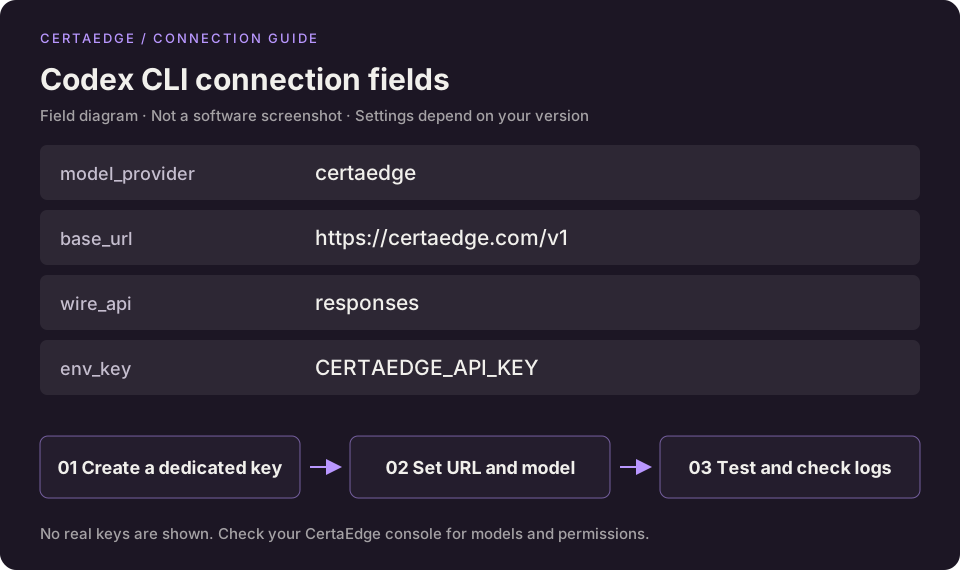
This is a field diagram, not a screenshot of a tested client session.
3. Set the key in the terminal used to launch Codex
macOS / Linux / WSL:
export CERTAEDGE_API_KEY='sk-YOUR_API_KEY'Windows PowerShell:
$env:CERTAEDGE_API_KEY = 'sk-YOUR_API_KEY'Use your own complete key. This variable applies only to the current terminal and its child processes. Applications opened from desktop icons usually do not inherit this temporary value.
4. Start a new session and verify
Open the project directory you want to use, then run this in the terminal where you set the key:
codexFirst ask “Only summarize this project's directory structure. Do not modify any files.” Confirm that the provider and model are correct, a response arrives, and the request appears in Usage Logs before starting regular work.
Configuration changes do not update old sessions automatically. Exit the old CLI and restart it before testing; you do not need to delete existing sign-in records.
Troubleshooting
| Symptom | What to do |
|---|---|
Missing CERTAEDGE_API_KEY | Set it again in the same terminal used to launch Codex, rather than another window |
| TOML parsing or duplicate-field error | Check top-level placement, double quotes, and existing fields or tables with the same names |
| Another provider is still used | Confirm you edited the user-level file; check CODEX_HOME and whether a different profile was selected at launch |
| 401 / 404 / tool-calling failure | Check the key, model ID, Responses support, and permissions; follow the troubleshooting guide |
Fields were checked against the official OpenAI configuration reference. Desktop applications, extensions, and cloud products may support different configuration options; verify each separately.