
Cursor Setup
Check version support first
This guide applies only to Cursor versions whose model settings provide Override OpenAI Base URL or an equivalent custom endpoint option. If you only have an OpenAI API Key field with no address override, you cannot connect directly to CertaEdge with this setup. Use a client that supports custom addresses, such as Cherry Studio or Cline / Roo.
Install Cursor from its official website and sign in. Have your CertaEdge API Key and a model ID that supports Chat Completions ready.
1. Set the custom address first
- Open Cursor Settings → Models and find the OpenAI settings.
- Confirm Override OpenAI Base URL, or the equivalent option, is available and enabled.
- Enter
https://certaedge.com/v1, without the full/chat/completionspath. - Paste your CertaEdge key into the matching API Key field, then save or run the verification offered by the interface.
Confirm the address override is active before testing the key, so the platform key is not sent to the default OpenAI address.
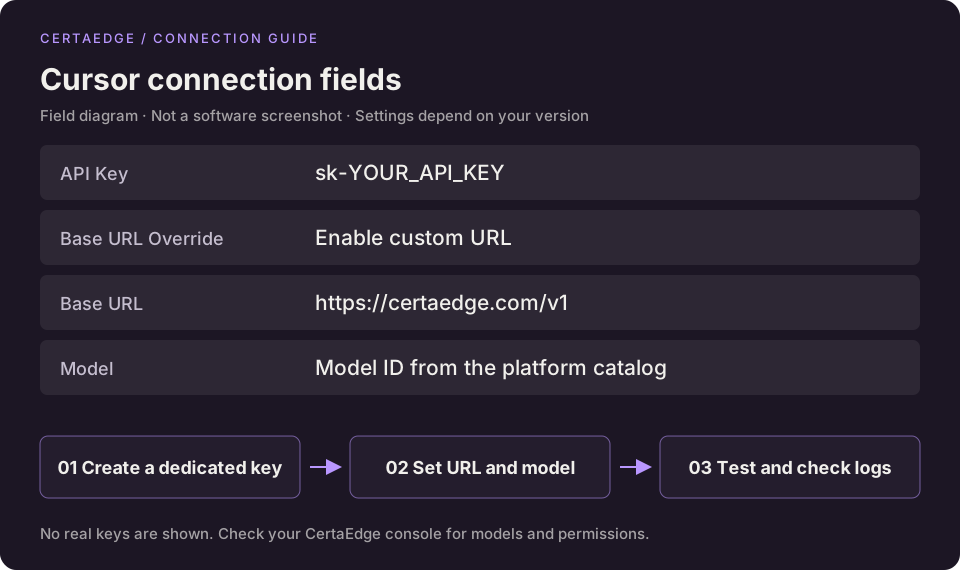
This diagram shows fields in a version with an address override. These options are not available in every Cursor version.
2. Select a model and send a request
If your version allows custom models, add and enable the complete ID copied from the platform. Explicitly select it in chat. Avoid Auto mode for the first verification.
Send a short message, then check Usage Logs. The expected model request must appear there before you can confirm the session is using CertaEdge.
Feature scope and troubleshooting
- Cursor determines which features use custom API Keys. Tab completion still uses its built-in models; this configuration does not switch it to CertaEdge.
- If your version cannot add the intended model, has no address override, or rejects third-party endpoints, changing the key field alone will not resolve it.
- For 401 errors, check the key and override option. For 404 errors, check the model ID and protocol. If no platform request is logged, first check the model actually selected in the session.
Cursor's standard bring-your-own-key flow is described in the official API Key guide. Its default OpenAI settings are not sufficient on their own for a third-party endpoint.