
CC Switch Setup
Install the client from the official CC Switch releases, then install the Codex CLI or Claude Code version you intend to use. CC Switch manages connection settings; you still need the tools themselves.
Option 1: Import from CertaEdge
- Sign in, open API Keys, and find an existing, active key.
- Open its row actions menu and select CC Switch.
- Select the target application, such as Claude or Codex. You can use
CertaEdgeas the provider name. - Select or enter a real model ID under Primary model. Codex requires Responses; Claude Code requires Messages and tool calling.
- Click Open CC Switch and select the installed CC Switch application in the system prompt.
- Review the address, key, and model on the import confirmation screen, then save.
The import link contains your API Key. Do not share it or paste it into a public webpage. If the application does not open, confirm CC Switch is installed on this computer and allow the system to open its custom link.
Option 2: Add a provider manually
- Select the target application in CC Switch. For your first connection, use direct mode so you can test without also changing local routing rules.
- Click Add provider, then select Custom configuration.
- Set the name to
CertaEdge. Use the endpoint below and the key copied from the console. - Enter an available model ID in the application's model settings, then add the provider.
| Target application | Address | Requirements |
|---|---|---|
| Claude Code | https://certaedge.com | Messages and tool calling |
| Codex CLI | https://certaedge.com/v1 | Responses and tool calling |
If the form requires JSON or TOML, follow the fields in the Claude Code or Codex guide. CC Switch manages credential files, so avoid mixing its credential management with manually configured environment variables.
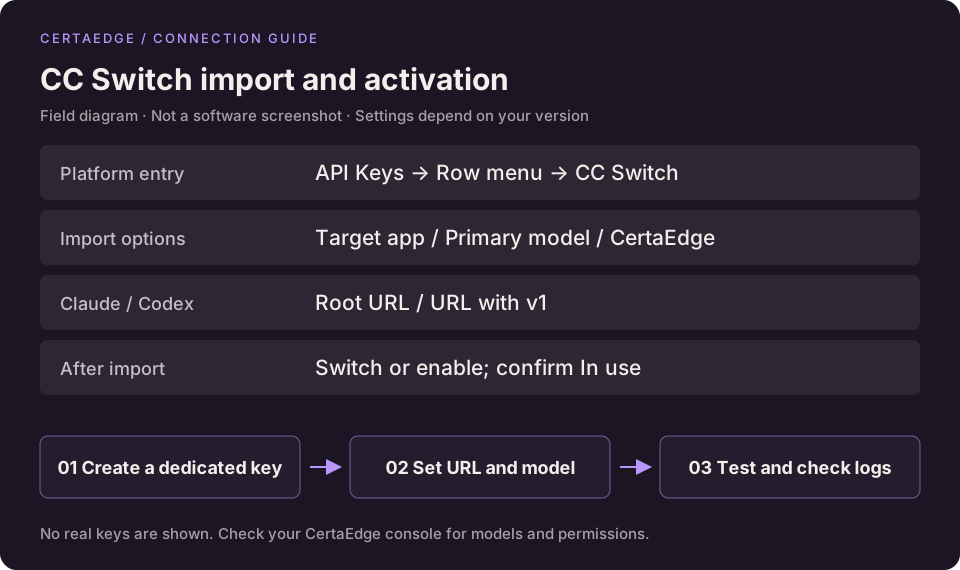
This is a field diagram. Forms may differ between versions.
Confirm the provider is active
Click Switch or Enable on the CertaEdge card and confirm it shows In use. Saving a card or seeing a Direct label alone does not mean the configuration is active.
Exit and restart Codex CLI; fully quit and reopen the desktop application. Recent Claude Code versions can reload settings, but start a new session if you are unsure.
Send a short request, confirm the intended model responds, and find the request in Usage Logs. If routing or aggregation mode is still active, check the actual forwarding destination rather than relying on the tab currently displayed.