
Create an API Key (Token)
An API Key authenticates model requests. Create a separate key for each tool so you can track its usage and disable it independently.
1. Create a key
- Sign in, open the API Keys page, and click Create API Key.
- Enter a purpose in Name, such as
cursor-work. For your first key, leave Quantity at1. - Under Group, choose an option available to your account. If Auto is selected and you do not need a custom order, keep the inherited global settings.
- Set an expiration date. Use a short validity period for temporary tests. Even keys set to Never expire need regular review.
- Under Quota settings, turn off Unlimited quota before entering a quota greater than
0if you want to limit your test budget. - Click Create. Creation is complete when the new key appears in the list.
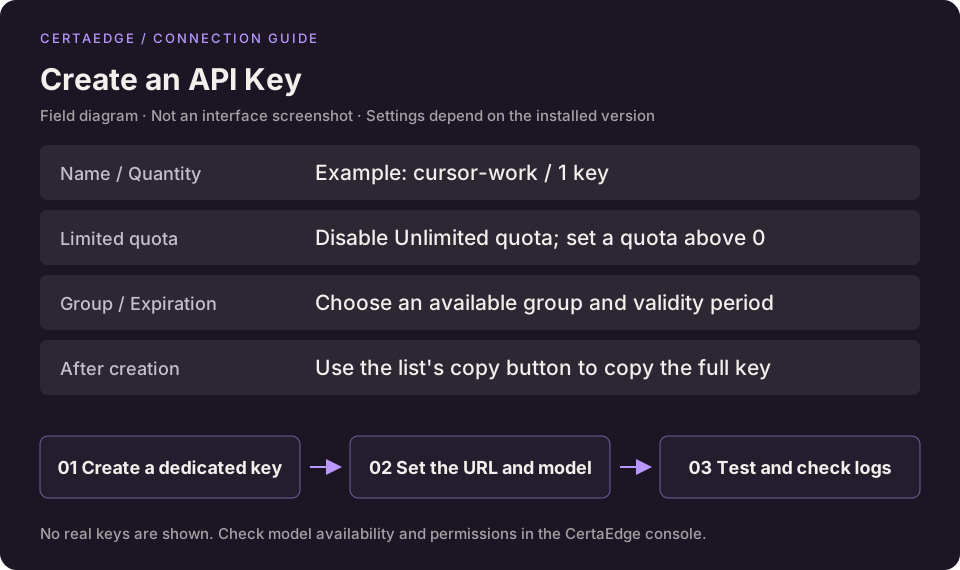
This is a field diagram. Refer to the console for the actual interface.
2. Set access restrictions as needed
Expand Advanced settings in the creation form to set model restrictions and an IP allowlist.
| Setting | What to enter |
|---|---|
| Model restrictions | Select the models to allow. Leaving this empty adds no key-specific model restriction, but account and group permissions still apply. |
| IP allowlist | Enter IP addresses only when you know the actual outbound IP of the requester. Leave this empty if unsure to avoid blocking your own requests. |
| Auto group | Keep the inherited global settings for your first setup. A custom configuration must include at least one available group. |
| Limited quota | Increase the key's quota when it runs out. This does not add funds to your account. |
Unlimited quota removes this key's individual quota cap. It does not make requests free or give your account an unlimited balance.
3. Copy the complete key
Find the new key in the list. Use the copy button beside it, or choose Copy key from the row menu. The complete key usually starts with sk-. Paste it directly into your client's API Key field.
Do not copy the masked text shown in the list. Do not add another sk- prefix to a key that already has one.
4. Check that it works
Follow Make your first request to send a short message, then check the request in Usage Logs.
For a 401 error, check whether the key is complete, expired, or disabled. If a model is unavailable, check its model ID, group, and model restrictions. If a key is exposed, disable it, create a replacement, and update your client configuration.