
Dify Setup
Have an accessible Dify workspace, your CertaEdge API Key, and a complete model ID that supports Chat Completions ready.
1. Install the compatible provider
Open Dify Settings → Model Providers and look for OpenAI-API-compatible in the available providers or Marketplace. Install the corresponding officially maintained plugin, open its card, and add a model.
Use the compatible plugin explicitly. Do not enter your CertaEdge key into a configuration that only connects to the official OpenAI address.
2. Add an LLM model
Complete the fields in your current plugin version:
| Field | Value |
|---|---|
| Model type | LLM |
| Model name | The complete model ID copied from CertaEdge |
| API Key | Your complete key, even if the plugin marks this field as optional |
| API Base URL | https://certaedge.com/v1, without the complete /chat/completions path |
| Conversation type / Mode | Chat |
| API type, if available | Chat Completions |
| Model context length | Keep the plugin default for an initial short-text test if needed; adjust to the model's specifications before regular use, without exceeding its actual context window |
| Maximum tokens | Do not exceed the model's maximum output; the plugin default can be used for an initial short-text test |
| Model name in API endpoint | Usually leave empty or enter the same real model ID; do not enter a display name by mistake |
Keep other advanced capabilities at their defaults first. Enable vision, tool calling, or multimodal features only after confirming the model supports them.
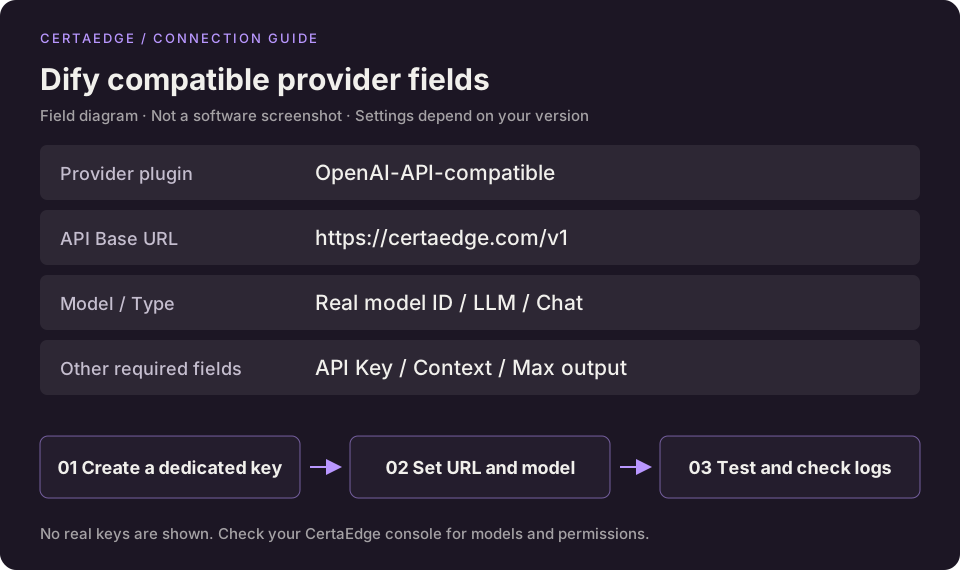
This diagram shows the main fields. Follow your plugin's form for all required fields.
Click save or validate. This may call the model to verify credentials and incur usage charges.
3. Use the model in a minimal app
- Create a simple chat app, or select an LLM node in an existing workflow.
- In the model selector, choose OpenAI-API-compatible → your model.
- Send one short text message. Leave knowledge bases, tools, and image input disabled for this test.
- After receiving a reply in Dify's preview, check the model and request status in Usage Logs.
Adding a model does not switch all applications automatically. If an app does not specify a model, also check the workspace's default model.
Troubleshooting
- Saving fails: complete required fields such as context length and inspect the specific HTTP error.
- Connection succeeds but the app does not use it: select the model again in the node or app.
- 400 parameter error: check the Chat / Responses selection and advanced parameters, as well as the key.
- Local testing succeeds but Dify fails: confirm the Dify service or container can reach the API, then follow the troubleshooting guide.
For more interface details, see the official Dify model-provider documentation.
Call generation APIs from a workflow
Use HTTP Request nodes for video or music APIs. Do not register media generation models as ordinary LLMs. The example below separates submission and querying into two small workflows so a chat request does not occupy one workflow for a long time.
Workflow 1: Refine a prompt and submit
- Create a Workflow and add two text inputs to the Start node:
promptandvideo_model. - Optionally add an LLM node to turn
promptinto a shot description. Use a model already verified for chat, rather than a video model. - Create a Secret environment variable named
CERTAEDGE_API_KEYfor your key. Do not ask end users to enter a key in an ordinary chat input. - Add an HTTP Request node, set Method to POST, and enter
https://certaedge.com/v1/videosas its URL. - Add an
Authorizationheader containingBearerfollowed by the key inserted with the environment-variable selector. Also addContent-Type: application/json. - Choose JSON for the body. In the video example, replace
modelwith the Start node'svideo_modelvariable andpromptwith the refinement node's text or Start input. Use the interface's variable selector rather than typing invented node IDs. Set other parameters according to the model's requirements.
An HTTP node's body is usually response text, rather than a JSON object whose fields you can immediately select. Add a Python Code node after it and bind the input variable body to that response body:
import json

def main(body: str) -> dict:
    data = json.loads(body)
    task_id = data.get("id")
    if not isinstance(task_id, str) or not task_id.startswith("task_"):
        raise ValueError("The generation API returned no valid task ID; check the HTTP status and error body")
    return {"task_id": task_id, "status": str(data.get("status", ""))}
Configure outputs named task_id and status, both of type String. Connect them to the End node so the caller can save the task ID. Non-success HTTP responses must go to an error branch and must not be treated as successful generation.
Workflow 2: Query status and return the result entry point
- Create a query Workflow whose Start node accepts only
task_id. - Use GET in the HTTP node. Build the URL with the variable selector by joining
https://certaedge.com/v1/videos/and the ID. Configure the authorization header with the same Secret variable. - Parse the returned
statusand display pending, completed, or failed according to the video status table. On failure, return an error safe to share with the caller. - Download from
/v1/videos/{task_id}/contentonly after completion. If your workflow has no secure download or storage node, let your backend or n8n download using the API Key. Do not include the key in a returned link.
This supports “refine prompt → submit task → query later.” For fully automated waiting, schedule these two workflows with n8n or an application script.
If you configure a Loop in Dify, provide a working wait step and a clear maximum iteration count. Do not assume every version has a built-in Wait node, and do not repeatedly call an LLM merely to pass the time.
Switch generation services
When using music, Midjourney, or background Responses, update ID extraction, the query path, and status handling along with the submission URL and request body. Changing only the model ID is not enough. See the generation overview for the corresponding rules.